Microsoft Login
Microsoft Login lets a domain's users sign in to the Hub with their Microsoft Entra ID (formerly Azure AD) account instead of (or alongside) a Hub password. Like Google Login, it is handled entirely by the shared federation framework's generic SAML strategy — Microsoft Entra ID is simply configured as a SAML 2.0 identity provider (IdP), with no Microsoft-specific route, Passport strategy, or code.
Supported Features
- SAML 2.0 SSO via a Microsoft Entra Enterprise Application, using
@node-saml/passport-saml. - Per-domain configuration: each domain can have its own SAML settings (
entryPoint,cert,signatureAlgorithm, ...), configured by an admin in Admin → Settings. - Find-or-create user matching: on first login, a user is created (or matched to an existing account) using the email address asserted by Entra; existing users are updated and reactivated if previously soft-deleted. This logic is shared with every other federation provider (see SSO Login: Shared verify function).
- State passthrough: an incoming
RelayStatequery parameter is honoured by the SAML flow for post-login redirects.
Configuration
In the domainFederations table (see SSO Login: Configuration for the shared columns), Microsoft rows use type: 'saml', with:
entryPoint— Entra's Login URL for the enterprise application.cert— Entra's token signing certificate (base64 X.509, downloaded as "Certificate (Base64)").issuer— optional SP Entity ID override.signatureAlgorithm—sha1orsha256(sha256recommended).legacy_callback_url— see SSO Login:legacy_callback_urlrules.
Entra's default claim URI http://schemas.xmlsoap.org/ws/2005/05/identity/claims/emailaddress is stripped of its namespace and lowercased by the shared SAML strategy's formatSAMLAttributeKeys(), landing as meta.emailaddress — exactly what the shared verify function looks for, as long as the default Attributes & Claims mapping isn't changed.
Setting up the Microsoft Entra Enterprise Application
In the Entra admin center, an admin creates (or edits) an Enterprise Application for the Hub, then configures Single sign-on → SAML:
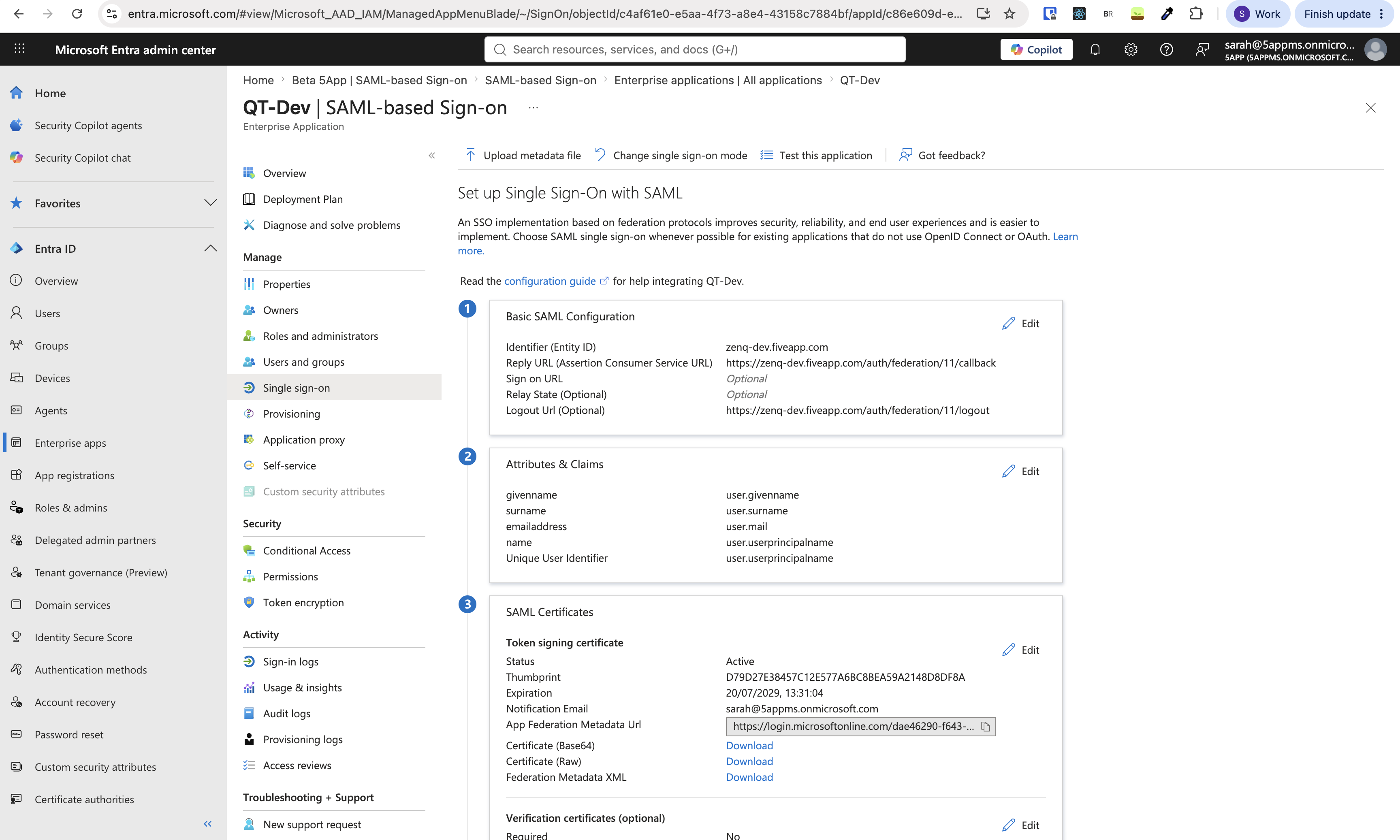
1. Basic SAML Configuration — values supplied by the Hub, the same pattern as Google's "Service provider details":
- Identifier (Entity ID) — the Hub's hostname, e.g.
zenq-dev.fiveapp.com. - Reply URL (Assertion Consumer Service URL) —
https://{domain}/auth/federation/{id}/callback. - Logout Url —
https://{domain}/auth/federation/{id}/logout. - Sign on URL / Relay State — optional.
2. Attributes & Claims — the default mapping (givenname → user.givenname, surname → user.surname, emailaddress → user.mail, name/Unique User Identifier → user.userprincipalname) works out of the box, since emailaddress is exactly what the shared verify function resolves.
3. SAML Certificates — download Certificate (Base64) and copy its contents into domainFederations.cert. Note the certificate's Expiration date shown here.
Entra also supports Upload metadata file at the top of this page, which can be populated from the Hub's own SP metadata endpoint (see Activating for a hub below) instead of entering the Basic SAML Configuration fields by hand.
domainFederations.issuer defaults to the Hub's hostname if left unset. The Identifier (Entity ID) field in Entra must match that value exactly — a mismatch causes Entra to reject or misdirect the SAML response. If a different Entity ID is required, set it explicitly in domainFederations.issuer to match.
The shared verify function has no way to resolve a user's email other than meta.emailaddress / meta.email / meta.nameID. If the Attributes & Claims mapping is edited so no claim maps to an email, or the claim is renamed to something that doesn't survive formatSAMLAttributeKeys()'s prefix-stripping/lowercasing as one of those keys, logins will fail to match or create a user.
The token signing certificate has an expiration date (shown in the "SAML Certificates" panel) and a notification email — which goes to the customer's Entra tenant admin, not to 5app. 5app must independently track and rotate the certificate in domainFederations.cert before it expires, or SSO will silently stop working.
Activating for a hub
To activate Microsoft SAML login for a hub, add a new entry to the domainFederations DB table:
domain_id: {hub domain id}
identity: login.microsoftonline.com
type: saml
config: {"preferred": true, "buttonSubtitle": "Microsoft", "domainAuthority": ""}
entryPoint: {Entra Login URL}
cert: {Entra's base64 token signing certificate}
signatureAlgorithm: sha256
is_deleted: 0
legacy_callback_url: {0 if another federation provider exists for this domain, otherwise 1}
Once the row exists, an admin can use Admin → Settings → Download SP metadata (/auth/federation/{id}/metadata) to fetch an SP metadata XML file, which can also be uploaded directly into Entra via Upload metadata file.
Further Resources
- Microsoft Entra SAML-based single sign-on
- SSO Login — the shared federation framework this article builds on.