Google Login
Google Login lets a domain's users sign in to the Hub with their Google Workspace account instead of (or alongside) a Hub password. It is handled entirely by the shared federation framework's generic SAML strategy — there is no Google-specific route, Passport strategy, or code; Google Workspace is simply configured as a SAML 2.0 identity provider (IdP), identically to any other SAML IdP.
Supported Features
- SAML 2.0 SSO via a Google Workspace custom SAML app, using
@node-saml/passport-saml. - Per-domain configuration: each domain can have its own SAML settings (
entryPoint,cert,signatureAlgorithm, ...), configured by an admin in Admin → Settings. - Find-or-create user matching: on first login, a user is created (or matched to an existing account) using the email address asserted by Google; existing users are updated and reactivated if previously soft-deleted. This logic is shared with every other federation provider (see SSO Login: Shared verify function).
- State passthrough: an incoming
RelayStatequery parameter is honoured by the SAML flow for post-login redirects.
Configuration
In the domainFederations table (see SSO Login: Configuration for the shared columns), Google rows use type: 'saml', with:
entryPoint— the IdP's SSO URL (Google'shttps://accounts.google.com/o/saml2/idp?idpid=...).cert— the IdP's signing certificate (base64 X.509, no-----BEGIN CERTIFICATE-----headers needed).issuer— optional SP Entity ID override (see Setting up the Google Workspace SAML app below for why this matters).signatureAlgorithm—sha1orsha256(Google usessha256).legacy_callback_url— see SSO Login:legacy_callback_urlrules.
Setting up the Google Workspace SAML app
Currently only Rob and Philip have login permission for the Google Admin console.
In the Google Admin console, an admin creates a custom SAML app (Apps → Web and mobile apps → Add app → Add custom SAML app). Google first shows its own IdP details (SSO URL, Entity ID, Certificate) — these map to domainFederations.entryPoint and domainFederations.cert.
The next step, Service provider details, is where the Hub's own values are entered:
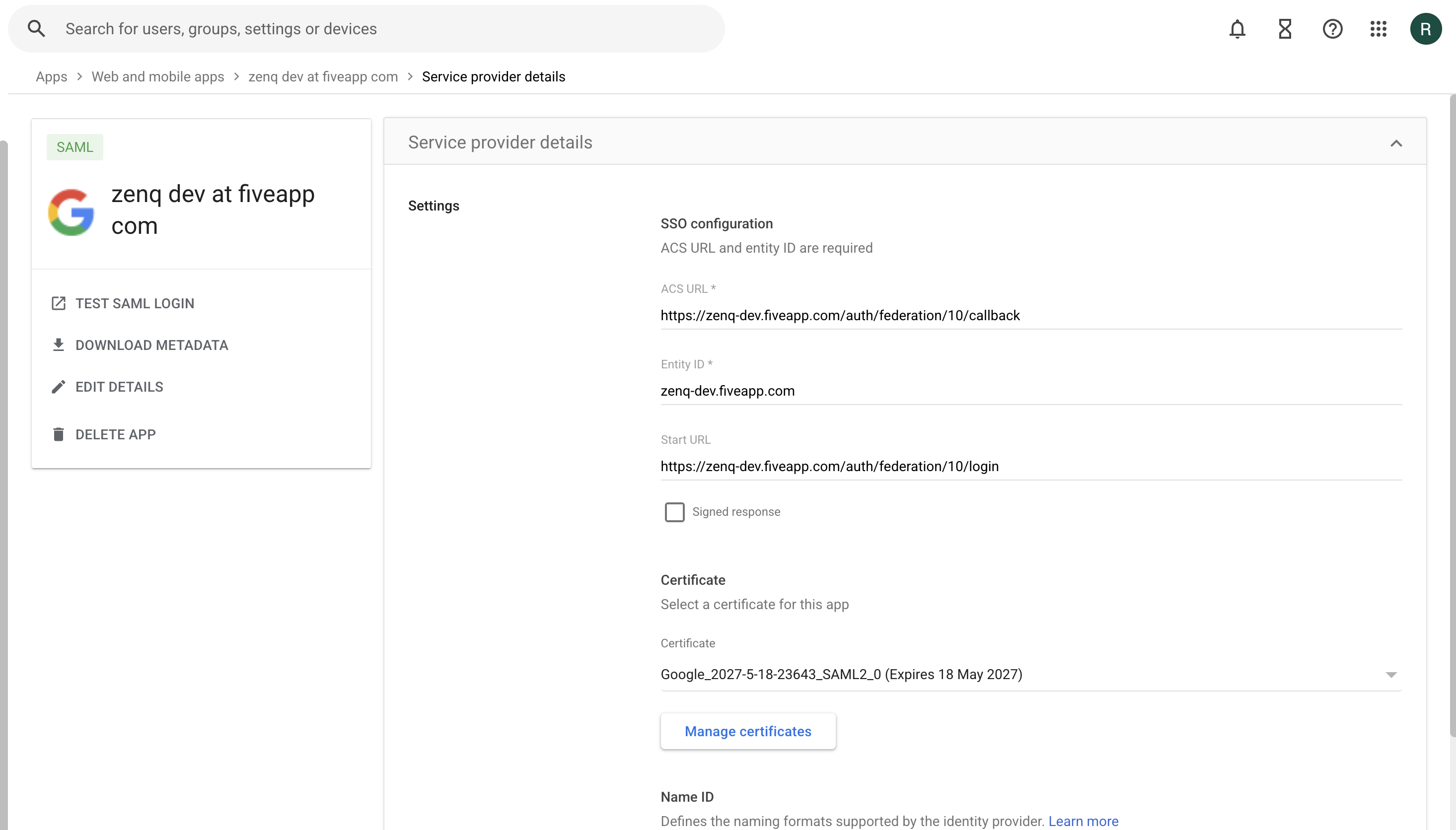
- ACS URL —
https://{domain}/auth/federation/{id}/callback. - Entity ID — the Hub's hostname, e.g.
zenq-dev.fiveapp.com(nohttps://prefix). - Start URL — optional,
https://{domain}/auth/federation/{id}/login. - Certificate — select the certificate matching the one copied into
domainFederations.cert.
Finally, map an attribute (e.g. Basic Information → Primary email) so Google asserts an email attribute — name it email or emailaddress to match what the shared verify function expects.
domainFederations.issuer defaults to the Hub's hostname if left unset. The Entity ID field entered into Google must match that value exactly, with no protocol prefix — a mismatch causes Google to reject or misdirect the SAML response. If a different Entity ID is required, set it explicitly in domainFederations.issuer to match.
The signing certificate selected in Google has an expiry date. When it lapses, Google-signed SAML responses will fail verification and SSO will silently stop working. Track the certificate's expiry and rotate it in both Google Workspace and domainFederations.cert before it lapses.
Activating for a hub
To activate Google SAML login for a hub, add a new entry to the domainFederations DB table:
domain_id: {hub domain id}
identity: accounts.google.com
type: saml
config: {"preferred": true, "buttonSubtitle": "Google", "domainAuthority": ""}
entryPoint: {Google IdP SSO URL, e.g. https://accounts.google.com/o/saml2/idp?idpid=...}
cert: {Google's base64 signing certificate}
signatureAlgorithm: sha256
is_deleted: 0
legacy_callback_url: {0 if another federation provider exists for this domain, otherwise 1}
Once the row exists, an admin can use Admin → Settings → Download SP metadata (/auth/federation/{id}/metadata) to fetch an SP metadata XML file, which Google Workspace can also accept as an upload instead of manually entering ACS URL / Entity ID.
Further Resources
- Google Workspace: Set up your own custom SAML app
- SSO Login — the shared federation framework this article builds on.